
CS 1.6 High Ping Explained | Why High Latency Players Get Kicked
Last updated: March 17, 2026
High Ping in CS 1.6: Why You Get Kicked and How to Find the Right Server
Let’s be honest: if you’re constantly getting kicked by a High Ping Kicker in CS 1.6, it’s incredibly frustrating. You just want to play a few rounds, but the server keeps booting you out.
You might be asking yourself, “why am I lagging in CS 1.6 so much?” and searching for a “magic fix” or downloading a VPN thinking it would solve everything. But here is the cold truth: a VPN will not reduce your ping. In fact, it usually makes it worse because your connection has to take a longer route through an extra server.
In this guide, we’ll look at why high ping cs 1.6 issues happen, why server owners are forced to use those annoying kickers, and how you can actually find a server where you can play without the constant cs 1.6 lag.
The Reality of Distance: Why Your Ping is 300+
Think of ping as the time it takes for your data to travel from your PC to the server and back. If you live in Argentina and try to join a server in Romania, your data has to travel across the ocean through thousands of miles of cables. Even at the speed of light, that takes time.
Because of this physical distance, your CS 1.6 latency will always be high. No “registry booster” or “ping fix” can change the laws of physics.
Your cs 1.6 server latency is almost entirely decided by the geographical gap between you and the host.
Why Do CS 1.6 Server Owners Use High Ping Kickers?
It feels personal when you get kicked, but CS 1.6 server owners use high ping kicker plugins for one main reason: to keep the game fair for everyone else. When your ping hits 300ms, you aren’t just experiencing cs 1.6 lag for yourself—you’re ruining the match for others:
- The “Warping” Effect: To players with a normal ping (1–90ms), you don’t run smoothly. You stutter and “teleport” across the map. It’s impossible to predict your movement.
- Hitbox Nightmares: When someone shoots at you, they’ll likely miss. Why? Because your character model is in one place, but your actual hitbox is lagging behind. This makes you “immortal” in a very unfair way.
- A Terrible Experience for You: High ping cs 1.6 gameplay causes massive “input lag.” Your shots fire late, your crosshair feels heavy, and you’ll often die before you even see the enemy turn the corner.
What is a “Good” Ping in Counter-Strike?
To really enjoy the counter-strike 1.6, you need to know what those latency numbers actually mean. In a fast-paced game like CS 1.6, even a split second matters for your reaction time and bullet registration.
Here is a realistic breakdown of cs 1.6 server latency:
- 1 – 40 ms (The Ideal Range): Perfect. Everything feels instant and smooth. This is the best connection you can have for any type of server, from casual public play to serious matches.
- 41 – 90 ms (Good/Normal): Most players connecting to a server within their own region or continent will fall into this range. The game is very playable, and you won’t notice much delay.
- 91 – 130 ms (High but Playable): You’ll start to feel a slight “heaviness” when switching weapons or moving. While it’s fine for public servers, you are at a slight disadvantage against players with very low ping.
- 130+ ms (Bad/Laggy): This is where cs 1.6 lag becomes a real problem. Your shots will register late, and you might see “ghosting” effects. At this point, most CS 1.6 server protection systems will automatically kick you.
How to Find a Low Ping Server in Your Region
Since you can’t “fix” the distance to a far-away server, your only real move to stop the high ping cs 1.6 kicks is to find one closer to home. Here’s how:
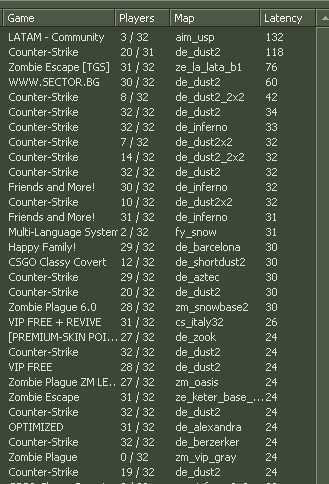
1. Use the “Latency” Filter in the Game
The best tool is already built into your CS 1.6 client:
- Open the Find Servers tab.
- Click the Latency column at the top.
- This sorts the list so the servers closest to you appear at the top. Always look for a low ping server with green numbers—these are your best bet to avoid cs 1.6 lag.
2. Search by Country on Gametracker
If your in-game list is a mess, use Gametracker to find a CS 1.6 server in your region:
-
- Go to the Gametracker CS 1.6 Search.
- Use the “Location” dropdown to pick your own country or the nearest neighbor. This keeps your data from having to travel across the world.
Can Console Commands Actually Help?
You’ve probably seen “pro settings” like rate 25000 or cl_cmdrate 101. While these help smooth out your movement (fixing “choke” or “loss”), they will not lower your high ping cs 1.6 if the server is 5,000 miles away. If your internet is bad or the distance is too great, commands won’t save you from being kicked.
The Golden Rule: If you want to stop lagging in CS 1.6, stop trying to play on servers across the ocean. Use the in-game browser, find the lowest latency number, and enjoy a smooth game.
Can Console Commands Actually Help?
You’ve probably seen “pro settings” like rate 25000 or cl_cmdrate 101. While these commands help smooth out your movement (fixing “choke” or “loss”), they will not lower your ping if the server is 5,000 miles away. If your internet is bad or the distance is too great, commands won’t save you.
The Golden Rule: If you want to stop lagging in CS 1.6, stop trying to play on servers across the ocean. Use the in-game browser, find the lowest latency number, and enjoy a smooth game.
For a stable experience, we always recommend a clean, optimized version of the game. You can download Counter-Strike 1.6 from csdownload.net, which is already tuned to handle modern internet connections as efficiently as possible.
To grab the original download Counter-Strike 1.6 build here plus you can explore more Counter-Strike 1.6 resources, feel free to use our links. Looking for a quick way to start?