
Counter-Strike 1.6 Installation Guide With Screenshots
This Counter-Strike 1.6 installation guide covers the complete setup process with real screenshots for
every step, including how to install CS 1.6 on Windows 11, Windows 10, and Windows 7.
The CS 1.6 installer triggers a Windows SmartScreen warning on first run – this is expected behavior for new executables and
does not indicate a security risk. Follow the steps below to complete the Counter-Strike 1.6
setup in under two minutes. If you have not downloaded the game yet,
download Counter-Strike 1.6 first.
If the installer won’t run, try temporarily disabling “Virus & threat protection” in Windows Security.
If your PC routinely blocks .exe files from unfamiliar sources, the simpler Original Version download is
usually less likely to trigger that behavior.
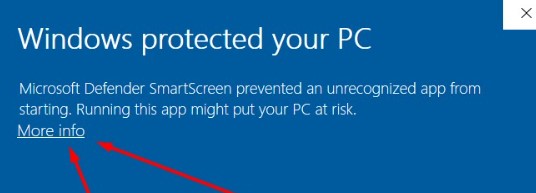
Important: When installing Counter-Strike 1.6 from a new installer file, Windows SmartScreen may show a warning because the file has not yet been widely distributed. This does not mean the file is dangerous. The installer is verified clean – see the VirusTotal scan.
Installing Counter-Strike 1.6 With Screenshots
The Windows SmartScreen warning
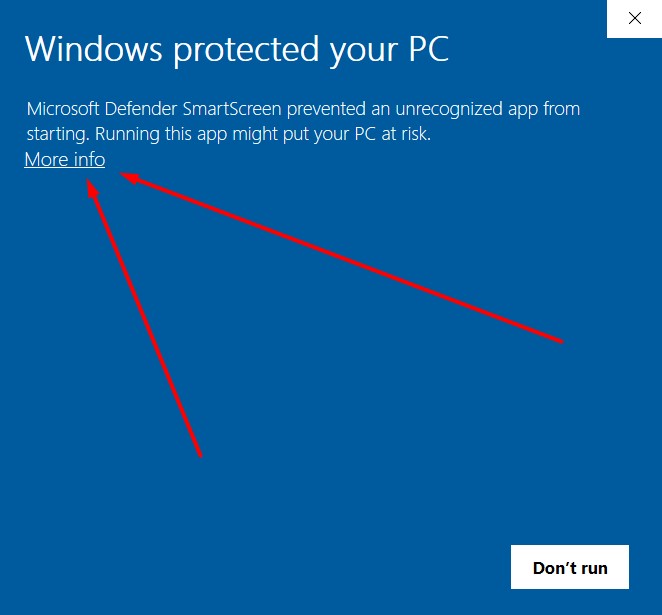
When you double-click the CS 1.6 installer, Windows may show a blue screen reading “Windows
protected your PC”. This is a standard SmartScreen warning for executables that haven’t yet
accumulated enough download history to be automatically trusted. Click “More info” to
continue.
Letting the installer run
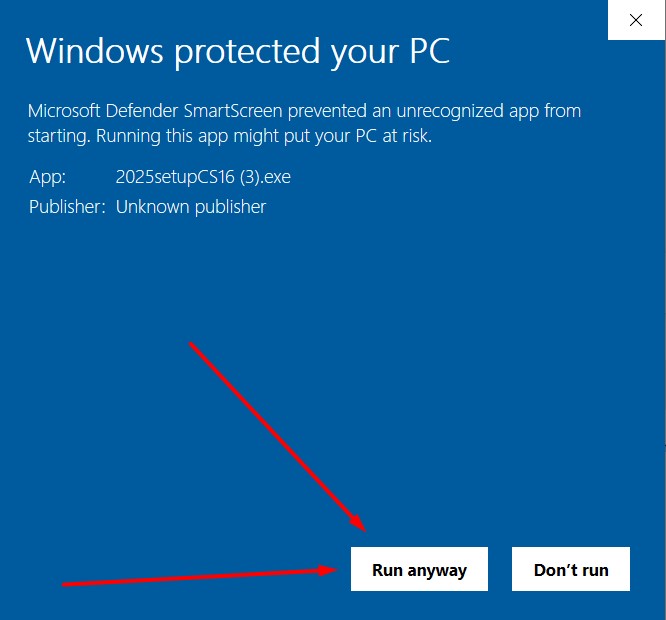
After clicking “More info”, two buttons appear: “Run anyway” and “Don’t run”. Click
“Run anyway” to proceed with the Counter-Strike 1.6 installation.
Choosing the installation folder
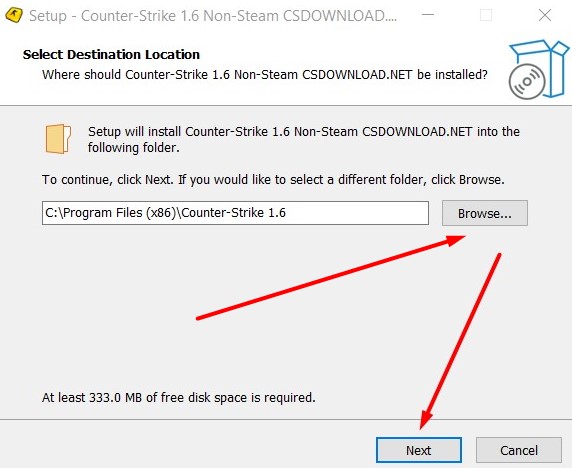
The installation wizard starts and asks you to select the destination folder for Counter-Strike 1.6.
The default location is recommended – it keeps compatibility with most plugins and server tools. Click
“Next”.
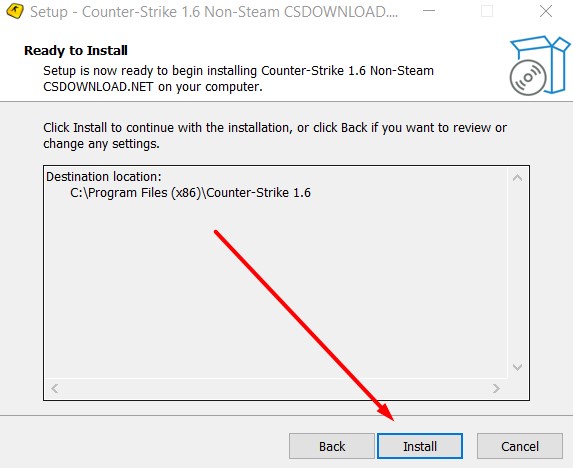
Starting the install
A summary of your installation settings appears – check that the destination folder is correct, then
click “Install”.
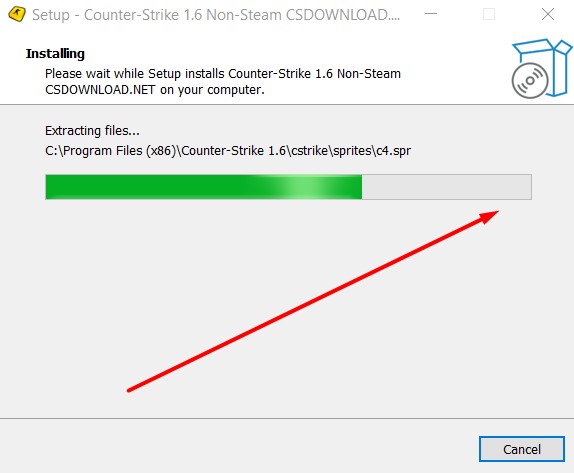
Copying the game files
The installer extracts and copies all game files to the selected folder. The progress bar shows the
installation status – this takes roughly 20-40 seconds depending on your system.
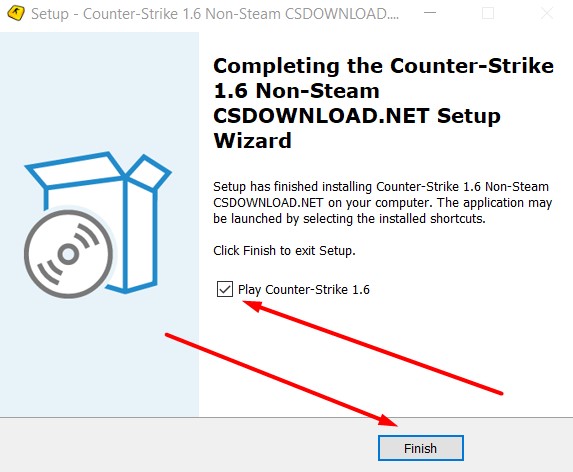
Finishing the setup
Once installation is complete, the wizard shows a “Finish” screen with an option to launch Counter-Strike
1.6 immediately. Click “Finish” – the game launches automatically if the checkbox is
selected.
If Your Browser Blocks the Download First
If you’re downloading with an older browser (Internet Explorer or an older Edge build), extra warnings
can appear before the file even reaches your Downloads folder. These are browser-level security prompts,
not antivirus detections, and they follow the same pattern every time.
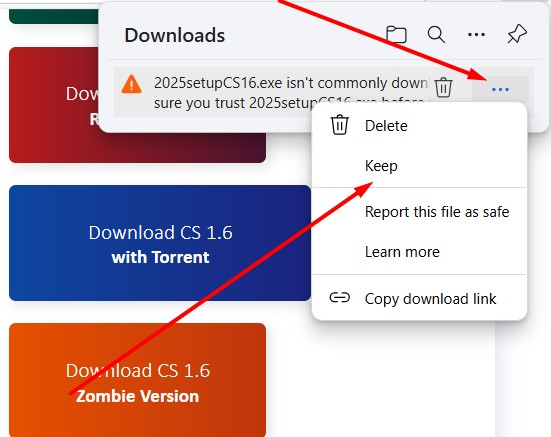
The browser flags the file as uncommon
The browser shows a message saying the file isn’t commonly downloaded.
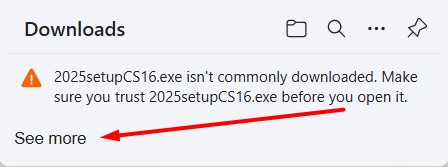
Expanding the warning
Click “See more” to expand the warning options.
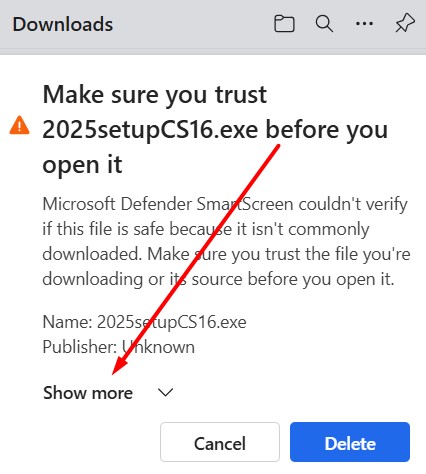
Confirming you trust the file
A “Make sure you trust…” window appears. Click “Show more”.
Keeping the file
Click “Keep anyway” to save the file and continue with the Counter-Strike 1.6 installation.
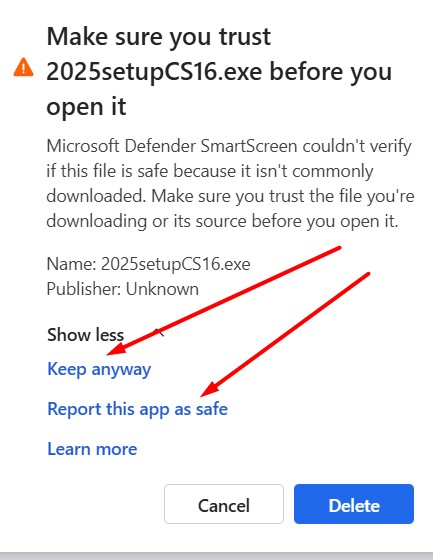
These browser warnings show up because the installer file is newer and hasn’t been widely distributed yet.
They’re not antivirus detections and don’t mean the file is unsafe.
After Installation
Counter-Strike 1.6 is now installed on your Windows PC. Launch the game from the desktop shortcut – on
first launch it can take 10-20 seconds longer than usual while it initializes its configuration files.
Open the Internet tab in the server browser to find active servers; the list should
populate within 10-30 seconds. If it stays empty after installation, see the
CS 1.6 server list fix.
Running into a black screen, resolution problems, or the game not launching on Windows 10 or 11? Check
Counter-Strike 1.6 common issues and solutions.
For tuning your mouse, crosshair, and network settings once the install is done, see the
CS 1.6 hidden settings guide.
For additional files and configs, browse the Counter-Strike 1.6 site and grab the Counter-Strike 1.6 installer.