
CS 1.6 Launch Options: Full List & Best Settings
Last updated: May 1, 2026
Counter-Strike 1.6 Launch Options
CS 1.6 launch options are startup commands that control performance, resolution, DirectX version, and input settings before the game loads. Add them once and they apply every session. If you haven’t installed the game yet, download CS 1.6 before configuring launch options.
What Are All the CS 1.6 Launch Options?
These are all available counter-strike 1.6 launch options. Each command targets a specific system function — video, CPU priority, mouse input, memory, or display. Use only the commands relevant to your hardware.
| Launch Option | Description |
|---|---|
-novid |
Skips the intro video on startup |
-console |
Enables the developer console at launch |
-high |
Runs the game with high CPU priority |
-windowed |
Launches in windowed mode instead of fullscreen |
-w [width] |
Sets window width in pixels (e.g. -w 1280) |
-h [height] |
Sets window height in pixels (e.g. -h 720) |
-safe |
Starts with default settings to fix crashes or black screens |
-nojoy |
Disables joystick input to reduce CPU load |
-dxlevel [level] |
Forces a DirectX version (e.g. -dxlevel 90 for DirectX 9) |
-nod3d9ex |
Disables Direct3D 9Ex, fixes issues on older GPUs |
-noforcemspd |
Uses OS mouse speed instead of game mouse speed |
-noforcemparms |
Uses OS mouse sensitivity instead of game settings |
-exec [configfile] |
Auto-executes a config file on startup |
-refresh [rate] |
Sets monitor refresh rate (e.g. -refresh 144) |
-maxmemory [size] |
Limits RAM allocation for the game |
-threads [num] |
Sets number of CPU cores the game uses |
-noaafonts |
Disables font anti-aliasing for sharper text |
-cpu [number] |
Limits active CPU cores (useful for older processors) |
Best CS 1.6 Launch Options by PC Type
These are the recommended cs1.6 best launch options for each system type. Copy the command string directly into your launch options field.
Low-End PC
-novid -safe -dxlevel 80 -noforcemspd -high
-dxlevel 80 forces DirectX 8, which is significantly less demanding on older GPUs. -safe applies default settings to prevent crashes. -high gives the game more CPU resources to reduce stutter. Use this configuration on any PC with less than 1 GB RAM or a GPU older than 2008.
Mid-Range PC
-novid -high -console -dxlevel 90 -refresh 60
-dxlevel 90 enables DirectX 9 for improved visuals without overloading the GPU. -refresh 60 locks the game to 60Hz, matching most standard monitors. Add -console to access commands without opening options every session.
High-End PC
-novid -high -console -dxlevel 95 -refresh 144
-dxlevel 95 enables DirectX 9.5 for maximum graphical quality. -refresh 144 allows the game to run at 144Hz on compatible monitors, giving smoother motion and faster input response. This is the best cs 1.6 launch option setup for competitive play on modern hardware.
Fix Lag and Low FPS
-novid -safe -nojoy -dxlevel 80 -high
-nojoy removes joystick polling, which reduces unnecessary CPU load even if no joystick is connected. Combined with -dxlevel 80 and -high, this configuration recovers FPS on systems that drop below 30 frames during firefights.
Older Graphics Card
-novid -safe -dxlevel 70 -noforcemspd
-dxlevel 70 forces DirectX 7, which runs on GPUs that cannot handle DirectX 8 or 9 reliably. -noforcemspd prevents the game from overriding OS mouse settings, maintaining consistent input even on minimal hardware.
Precise Mouse Control
-novid -noforcemspd -noforcemparms -console
By default CS 1.6 overrides your OS mouse settings. -noforcemspd and -noforcemparms disable this override, letting your OS sensitivity and acceleration settings pass through directly. Essential for players using high-DPI mice or custom pointer settings.
Best Visuals at 1080p
-novid -high -console -dxlevel 95 -w 1920 -h 1080
Forces 1920×1080 resolution with DirectX 9.5 rendering. Use this on high-end systems with a 1080p monitor when visual quality is the priority over maximum FPS.
Fastest Load Time
-novid -high -console
The minimal cs 1.6 launch options setup. Skips the intro video, enables the console, and boosts CPU priority. No DirectX override means the game selects the best renderer automatically. Use this when your system already runs the game well and you only want faster startup.
Minimum Resource Usage
-novid -safe -nojoy -low
-low sets the game process to low CPU priority, useful on shared systems where background processes need resources. Combine with -safe and -nojoy to strip the game down to its lowest resource footprint.
How to Apply CS 1.6 Launch Options
Steam Version
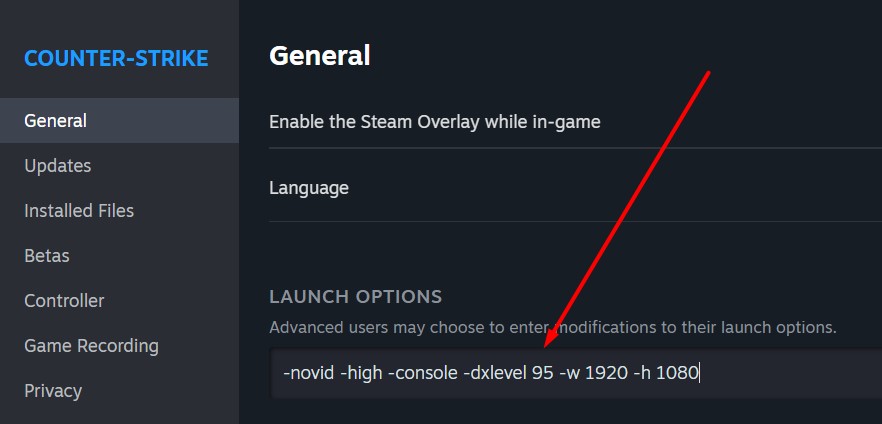
- Open Steam and go to your Library.
- Right-click Counter-Strike 1.6 and select Properties.
- In the General tab, click Set Launch Options.
- Enter your commands (e.g.
-novid -high -console). - Click OK and launch the game.
Non-Steam Version
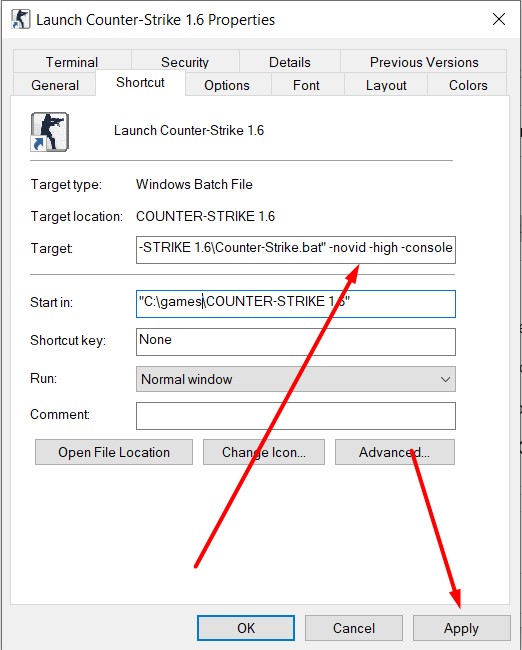
- Open your CS 1.6 installation folder.
- Locate
hl.exe,cstrike.exe, orcs.batdepending on your version. - Right-click the executable and select Create Shortcut.
- Right-click the shortcut and open Properties.
- In the Target field, add your launch options after the file path (e.g.
"C:\cs16\hl.exe" -novid -safe). - Click Apply and use the shortcut to launch the game.
For the full game and related downloads, visit the CS 1.6 download hub as well as get the CS 1.6 full version.