
Fix Mouse Moving on Its Own | Cursor Drift & Jitter Guide
Last updated: March 3, 2026
Why is My Mouse Moving on Its Own? How to Fix Cursor Drift
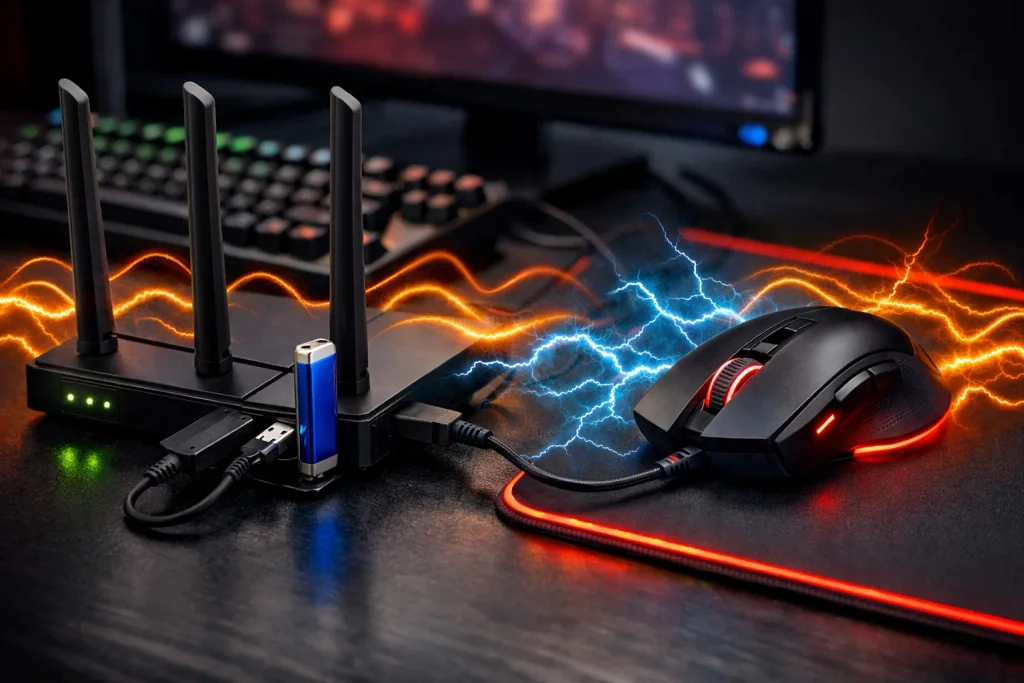
It is one of the most baffling tech issues: you are not touching your computer, yet the mouse cursor moves by itself. Sometimes it drifts slowly to the corner of the screen; other times, it suffers from erratic, jittery jumps. This problem, often called mouse drift or ghost cursor, is rarely caused by a virus. Instead, it is usually a physical or electrical issue that you can fix in minutes.
If your mouse is moving on its own or the sensor is acting up, follow this guide to troubleshoot the most common hardware and environmental causes.
Fix Mouse Drift Caused by USB Interference from Routers and Modems
The most frequent but least suspected culprit for a drifting mouse is actually electromagnetic interference (EMI). Most modern internet routers and modems have USB ports that users often use to charge phones, power LED strips, or connect external drives.
Before changing any settings, perform a simple “isolation test”: completely disconnect your internet router, modem, and the Ethernet (LAN) cable from your computer. If the mouse stops moving on its own once the internet hardware is disconnected, you have confirmed that the problem is caused by your internet cable, the router itself, or devices plugged into its USB ports.
- Remove USB Devices from Your Router: If your router is near your computer and has something plugged into its USB port, unplug it immediately.
- The Science Behind It: These USB ports on routers are often poorly shielded. Charging a phone or powering an LED strip draws a lot of energy, which creates an electrical field. This field can interfere with your mouse sensor or its cable, causing “ghost” movements.
- Identify the Interference: If your mouse starts jumping specifically when your internet usage is high (downloading or streaming), or when you are charging a device via the router, the router is leaking electrical noise through your desk or cables.
How to Fix Mouse Jitter: Cable and Connection Problems
If your mouse is still twitching, the problem might be a bad connection or a poor-quality cable that picks up “noise” from other electronics nearby. Here is exactly how to fix it:
- Replace Your Ethernet (LAN) Cable: If your internet cable is old, thin, or cracked, it acts like an antenna for interference. Try swapping it for a high-quality “shielded” cable (look for Cat6 or Cat7 on the wire).
- Stop Using USB Hubs: Never plug your mouse into a USB hub (a splitter) or the ports on the front of your PC case. These ports are often poorly grounded and share power with other devices. Plug your mouse directly into the back of your computer (the motherboard ports).
- Separate Your Wires: Don’t let your mouse cable get tangled with power cords or your router. If they are touching, the electrical current from the power cords can interfere with the mouse signal and cause unwanted mouse movement.
Other Practical Solutions to Stop Mouse Cursor Drifting
If the internet cables and router are fine, but the problem persists, try these additional methods to find the culprit:
- Disconnect All Other USB Devices: Unplug everything except your mouse, keyboard, headphones, printers, or webcams. Sometimes another faulty device creates a “short” or interference that makes the mouse move by itself. If the problem stops, plug devices back in one by one to find the “bad” one.
- Change USB Ports: Move the mouse to a different USB port on the back of the PC. If you were using a USB 3.0 (blue) port, try a USB 2.0 (black) port, as some older mouse sensors are more stable on the older standard.
- Reinstall Mouse Drivers: Windows drivers can get corrupted. Go to “Device Manager”, find your mouse, right-click it, and select “Uninstall device.” Unplug the mouse, plug it back in, and Windows will automatically reinstall a fresh driver.
- Test the Mouse Sensor (Laser/Optical): A broken sensor or a failing laser can cause erratic movement. Try the mouse on a different computer. If it still drifts there, the mouse itself is broken and needs to be replaced.
- Clean the Sensor and Surface: Dust or a tiny hair inside the sensor hole is a common reason for a vibrating cursor. Also, test the mouse on a plain piece of paper—if it stops moving, your current mousepad or desk surface is too reflective for the sensor.
Dealing with a cursor that moves on its own is usually a matter of trial and error. By isolating your internet hardware, removing high-power USB devices from your router, and ensuring your cables are properly shielded, you can eliminate most cases of mouse jitter and mouse ghost movement. If these physical steps don’t work, always test a different mouse to rule out a failing optical sensor.
Note: This tutorial is suitable for all Counter-Strike 1.6 players as well as any regular computer user who has nothing to do with the game. This guide was written because a player encountered this exact issue, and we decided to share the solution. For more tutorials and to download Counter-Strike 1.6, please visit our main page at csdownload.net.
For the full game and related downloads, visit the Counter-Strike 1.6 homepage as well as get the Counter-Strike 1.6 download.